---
title: Configuring your network’s appearance
description: Use the Appearance Toolkit to align your CareerPlug accounts with your network's branding and style.
---
[Skip to content](https://partnersupport.careerplug.com/configuring-your-networks-appearance#main-content)
[](https://partnersupport.careerplug.com?hsLang=en)
Open main navigation
Close main navigation
- [Get help now!](https://support.careerplug.com/help)
[Get help now!](https://support.careerplug.com/help?hsLang=en)
How can we help?
- There are no suggestions because the search field is empty.
1. [Partner Help Center](https://partnersupport.careerplug.com/?hsLang=en)
2. [Account Management](https://partnersupport.careerplug.com/account-management?hsLang=en)
# Configuring your network’s appearance
## Use the Appearance Toolkit to align your network's CareerPlug accounts with your branding and style.
##### In this article:
- [What is the Appearance Toolkit?](https://partnersupport.careerplug.com/configuring-your-networks-appearance#toolkit)
- [How do I customize my network's appearance?](https://partnersupport.careerplug.com/configuring-your-networks-appearance#customize)
### What is the Appearance Toolkit?
The **Appearance Toolkit** is available exclusively on the **Partner Advantage** plan. For more information, please contact your CareerPlug Partner Manager.
The Appearance Toolkit allows you to brand your network’s CareerPlug accounts with a custom **Theme**. You can update the **Name**, **Color**, **Logo**, and **Favicon** to match your organization’s identity and recruiting experience.
### How do I customize my network's appearance?
**Note:** All network appearance changes will also be reflected in your PartnerHub account.
1\. Navigate to **Toolkit \> Appearance** in PartnerHub.
2\. Update any of the four theme elements to match your network's branding:
- [Name](https://partnersupport.careerplug.com/configuring-your-networks-appearance#Name)
- [Color](https://partnersupport.careerplug.com/configuring-your-networks-appearance#color)
- [Logo](https://partnersupport.careerplug.com/configuring-your-networks-appearance#logo)
- [Favicon](https://partnersupport.careerplug.com/configuring-your-networks-appearance#favicon)
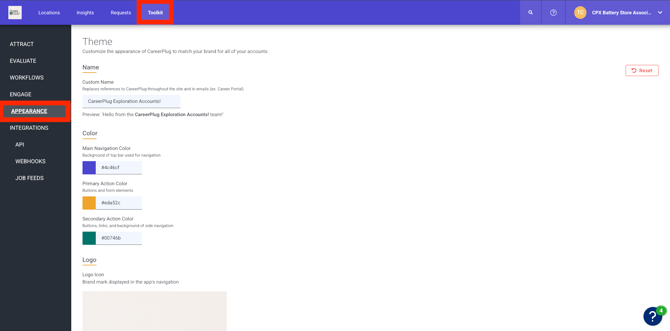
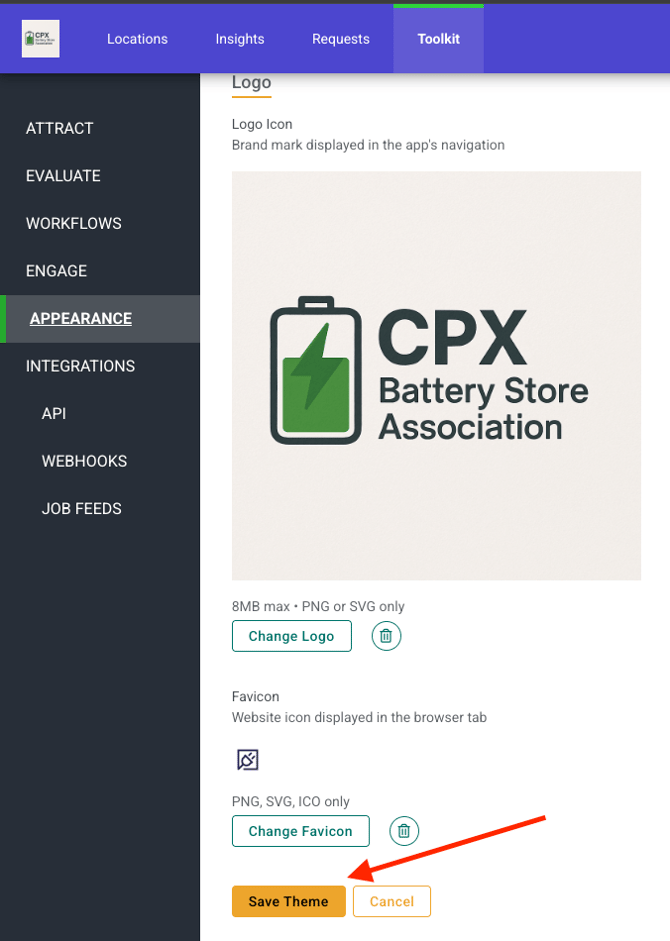
3\. When you're done, click the **Save Theme** button at the bottom of the page to apply changes across your network's CareerPlug accounts.
#### Name
Enter your network's name in the **Custom Name** field.
This will replace references to "CareerPlug" with your network’s name in email communications and throughout your CareerPlug experience.
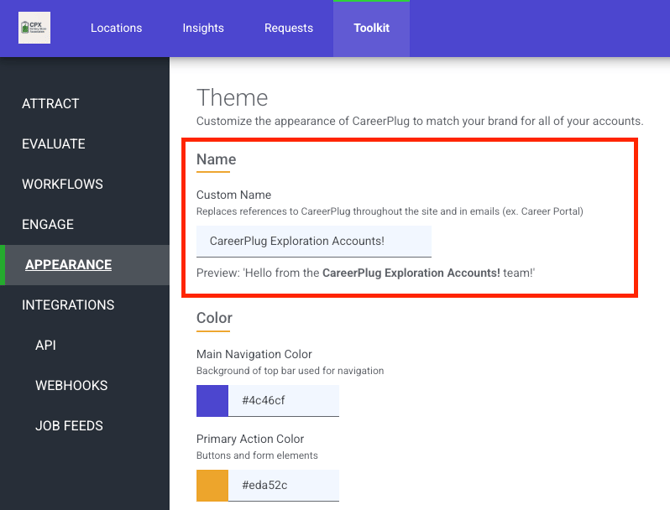
**Tip:** If you use a branded recruiting name, you can enter that in the **Custom Name** field instead.
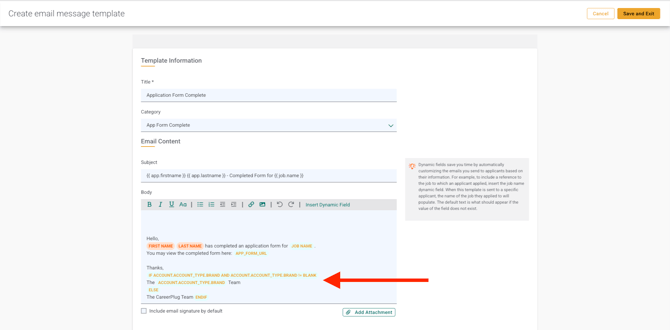
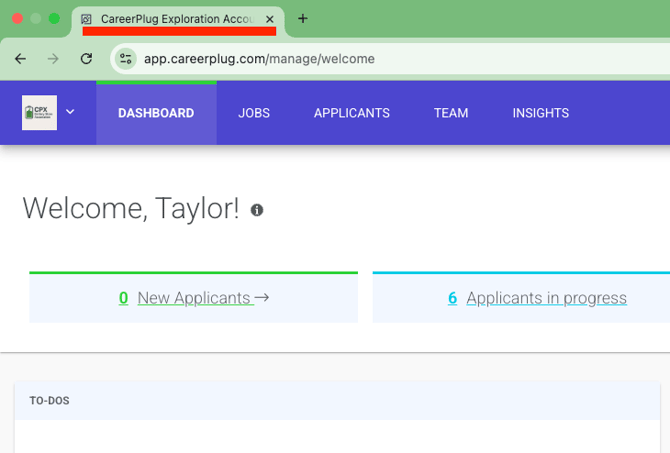
In a network account, the **Custom Name** you set will be applied to its email templates and the browser tab.
When owners view or edit email templates in their accounts, they’ll see dynamic fields in place of static names. When they email applicants using these templates, the dynamic fields will automatically populate with the name you set. If you (or your owners) don't set a **Custom Name**, it will default to"The CareerPlug Team.”
#### Color
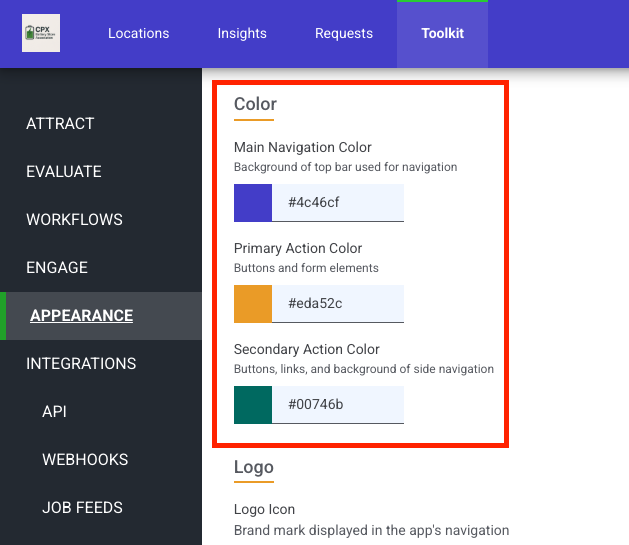
Choose three brand colors to customize the appearance of your network's CareerPlug accounts: **[Main Navigation Color](https://partnersupport.careerplug.com/configuring-your-networks-appearance#navigation)**, **[Primary Action Color](https://partnersupport.careerplug.com/configuring-your-networks-appearance#primary)**, and **[Secondary Action Color](https://partnersupport.careerplug.com/configuring-your-networks-appearance#secondary)**.
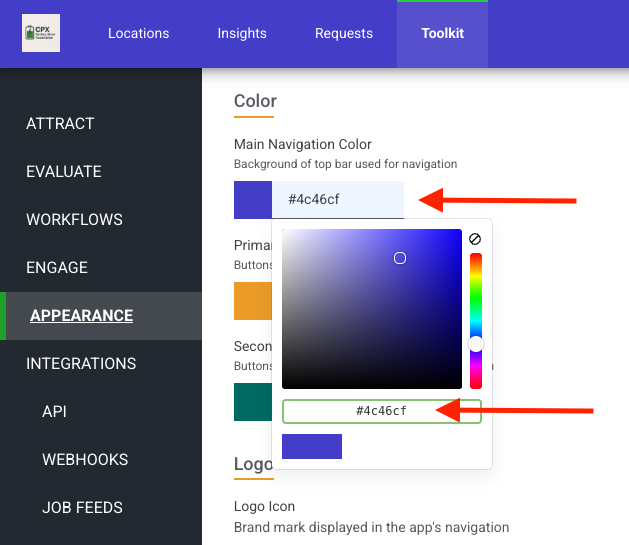
Click the field under whichever color you want to change. In the pop-up box, select a custom color manually or input a hex code in the open field.
##### **Main Navigation Color**
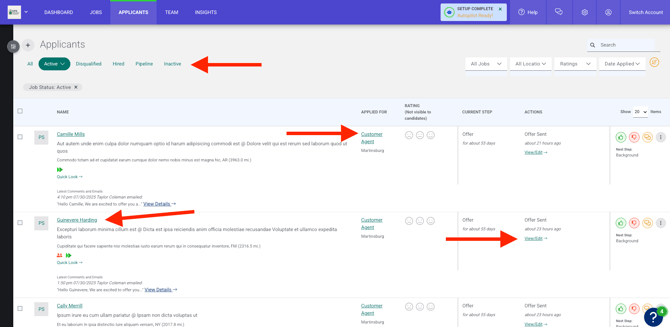
The **Main Navigation Color** is the background color of the top navigation bar in CareerPlug. The top navigation bar appears on most pages and includes tabs to make it easy for users to access different sections within CareerPlug.

##### **Primary Action Color**
The **Primary Action Color** is the color of your network's buttons and form elements in CareerPlug.
##### **Secondary Action Color**
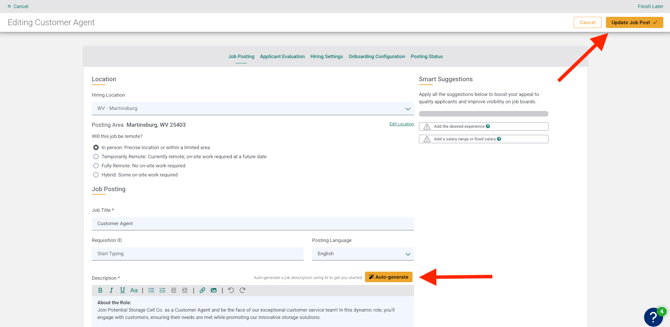
The **Secondary Action Color** is the color of your network's links and the background color of the side navigation bar in CareerPlug.
#### Logo
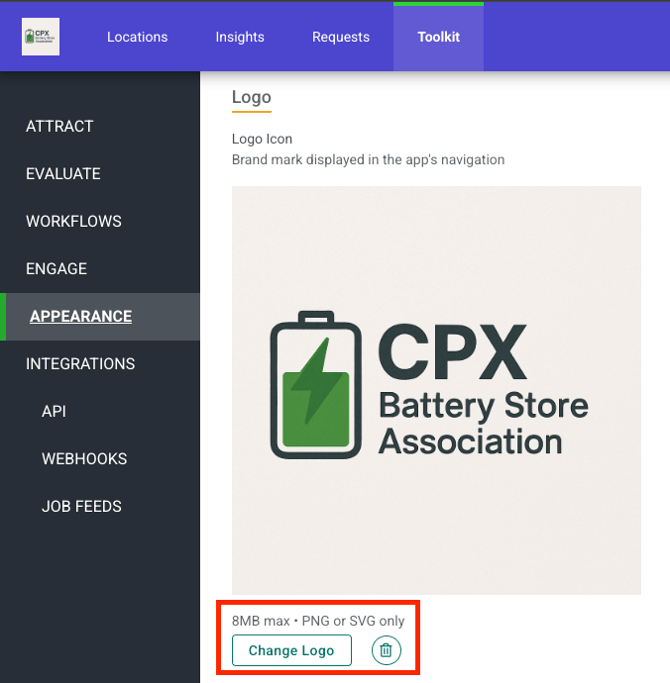
Click the **Change Logo** button and choose the file you wish to use for your logo.
##### Requirements:
- Format: PNG or SVG
- Max size: 8 MB
Your logo will appear in the top-left corner of the top navigation bar, and will act as a clickable menu you (and your owners) can use to navigate between **CareerPlug** (Recruiting/ATS) and **Onboarding** (Onboarding & Orientation Team Management).

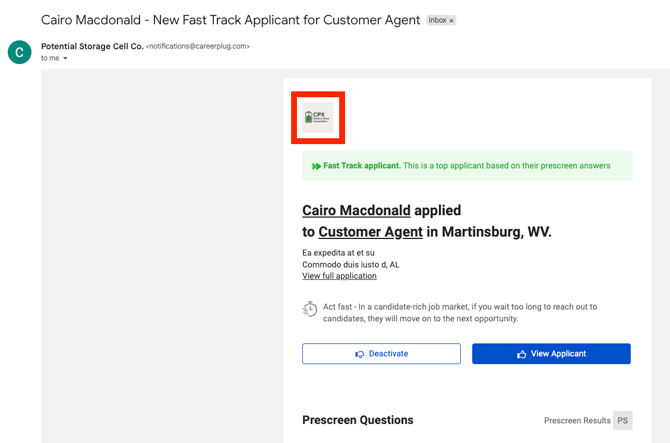
Your logo will also appear in email notifications sent from your network's CareerPlug accounts.
#### Favicon
Click the **Change Favicon** button and choose the file you wish to use for your favicon.
##### Accepted file types:
- PNG
- SVG
- ICO
**Tip:** Use a simple, square design to ensure it displays well across all browsers.
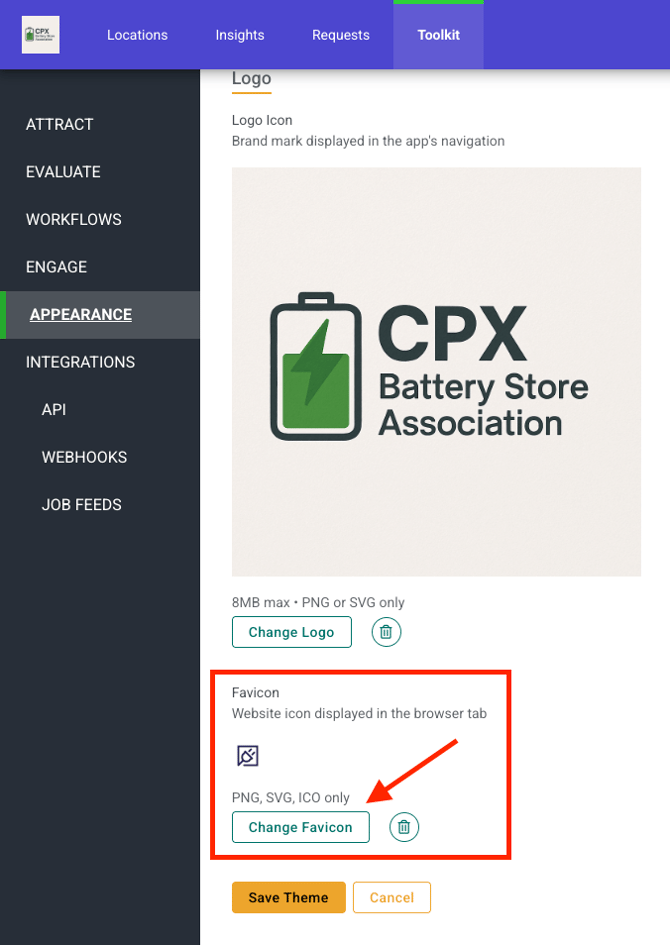
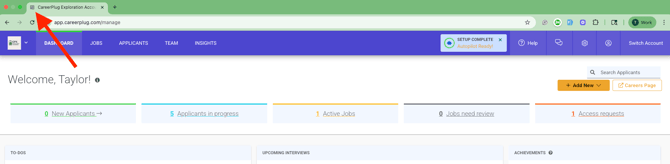
The favicon is the website icon that appears on the left side of a browser tab when a user from your network accesses CareerPlug.
- [Account Management](https://partnersupport.careerplug.com/account-management?hsLang=en)
- [Hiring & Recruiting Tools](https://partnersupport.careerplug.com/hiring-recruiting-tools?hsLang=en)
- [Partner Resources & Assets](https://partnersupport.careerplug.com/partner-resources-assets?hsLang=en)
- [Integrations & Technical Setup](https://partnersupport.careerplug.com/integrations-technical-setup?hsLang=en)
- [FAQs & Troubleshooting](https://partnersupport.careerplug.com/faqs-troubleshooting?hsLang=en)
- [Support](https://partnersupport.careerplug.com/support?hsLang=en)
- [Configure Onboarding & Retention](https://partnersupport.careerplug.com/configure-onboarding-retention?hsLang=en)
[](https://partnersupport.careerplug.com?hsLang=en)
Handcrafted in Austin, Texas
© 2026 CareerPlug. All rights reserved.